What is a KPD code
KPD (Classification of Products by Activity) is the official classification of the Croatian Bureau of Statistics (DZS). Under Fiscalization 2.0 the KPD code is mandatory on every eInvoice line.
The application does not keep its own code list: the picker is connected to the official Klasus register of DZS, so the offered codes are always identical to the official ones.
Selecting a code on an item or service
Open Warehouse → SKU books → Items (or Services) and edit an existing entry or add a new one.
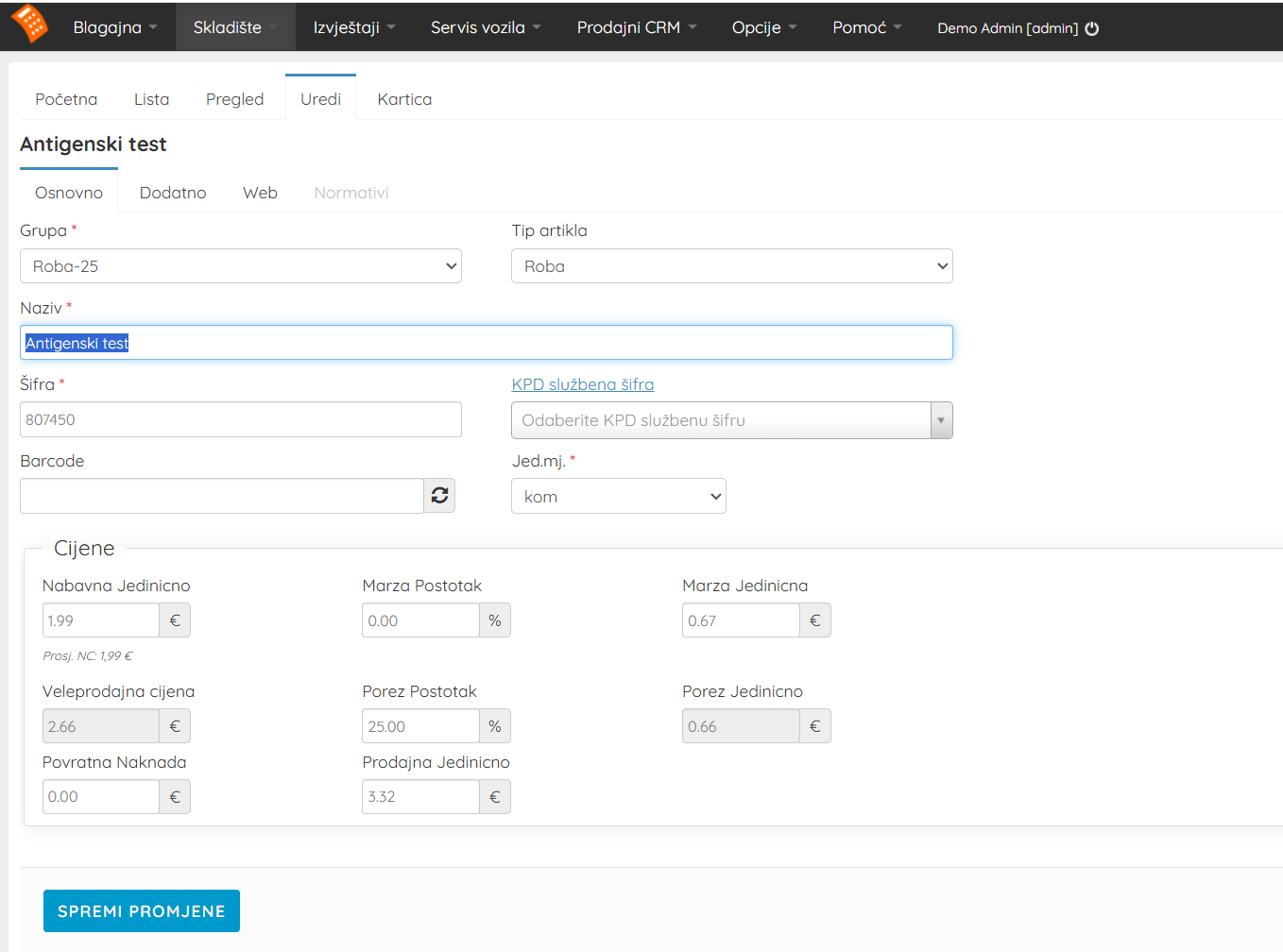
In the KPD official code field type the first digits of the code (at least three characters, e.g. 56.3) or part of the name. A list of Klasus codes opens: select the code and save the entry with Save changes (Add for a new entry).
Why can I not click the offered code?
The list shows the entire official hierarchy: section (A to V) and all narrower levels, down to the complete code. Only a complete code in the xx.xx.xx format can be selected, e.g. 81.21.01.
Rows shown in gray (e.g. 81.21 or 81.21.0) are parent levels: they only help you navigate the list and clicking them does not select anything.
The same applies when the gray level is exactly your registered activity: for an item or service, pick one of the complete codes below it. A few examples from different industries:
- Caffe bar:
56.30.0(Beverage serving services) is a gray level; you select the complete code56.30.00with the same name. - Hair salon: instead of
96.21.1(Hairdressing and barber services) you select e.g.96.21.11Hairdressing services of women and girls or96.21.12Hairdressing and barber services of men and boys. - Bakery shop: instead of
47.24.0(Retail sale services of bread, cake and confectionery) you select47.24.01Retail sale services of bakery products or47.24.02Retail sale services of confectionery. - Cleaning services: instead of
81.21.0(General cleaning services of buildings) you select81.21.01General home cleaning services or81.21.02Other general cleaning services of buildings.
56.30.0 and 56.30.00): only the row in the full xx.xx.xx format can be selected.O81.21.01). The code is saved on the entry without the letter (81.21.01).Detailed search by category and group
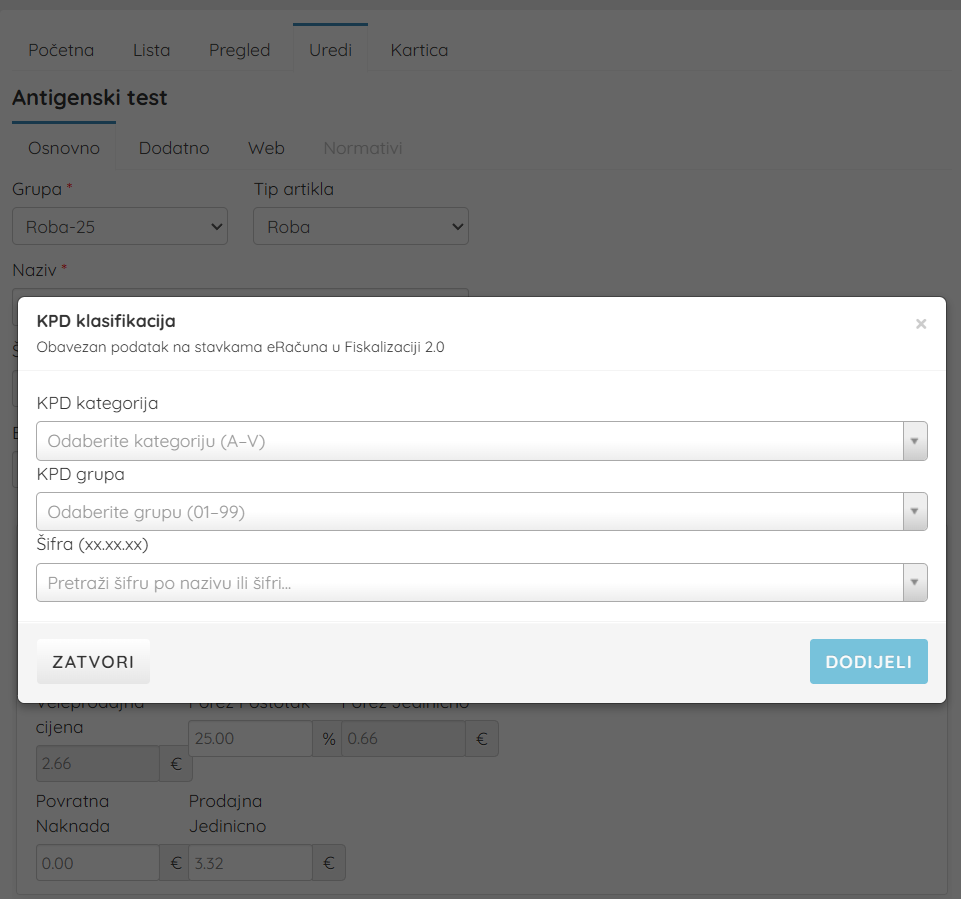
If you do not know the code, click the underlined label of the KPD official code field: the KPD Classification window opens.
Narrow down step by step: KPD category (A to V) → KPD group (01 to 99) → KPD code (xx.xx.xx). At every step you can also search by name. This window offers only codes that can actually be assigned, so it is the easiest way when you are not sure.
Bulk assignment of KPD codes
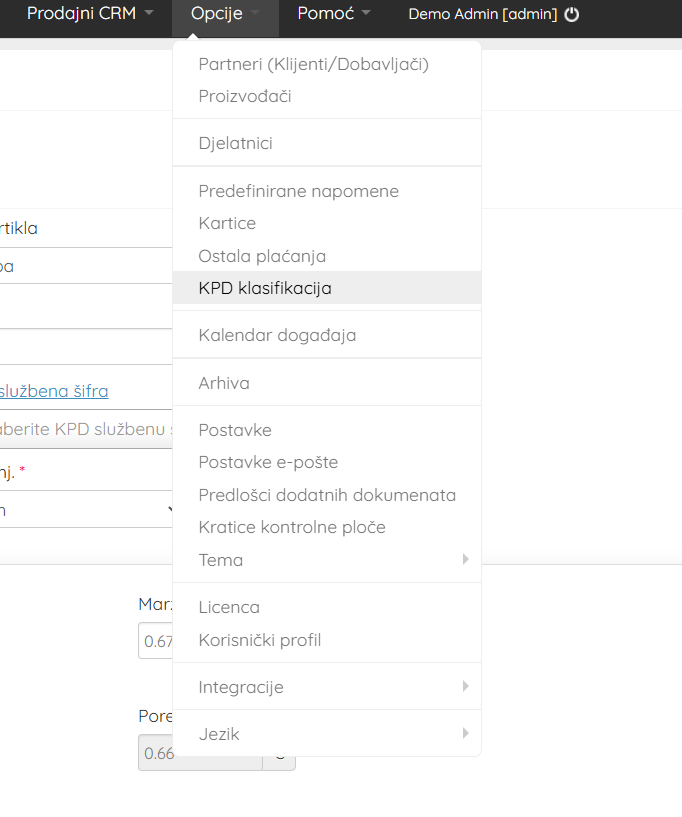
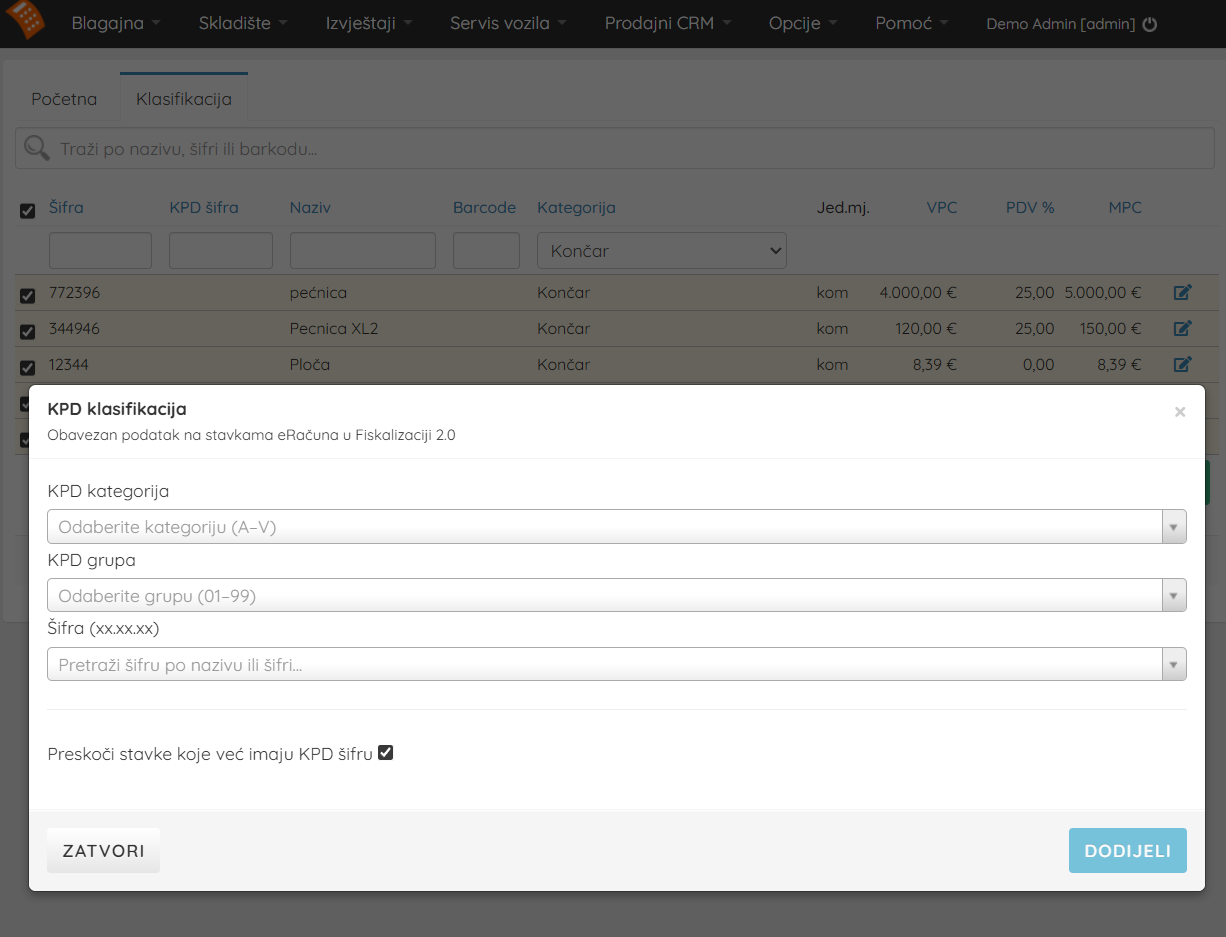
Open Options → SKU books → KPD classification.
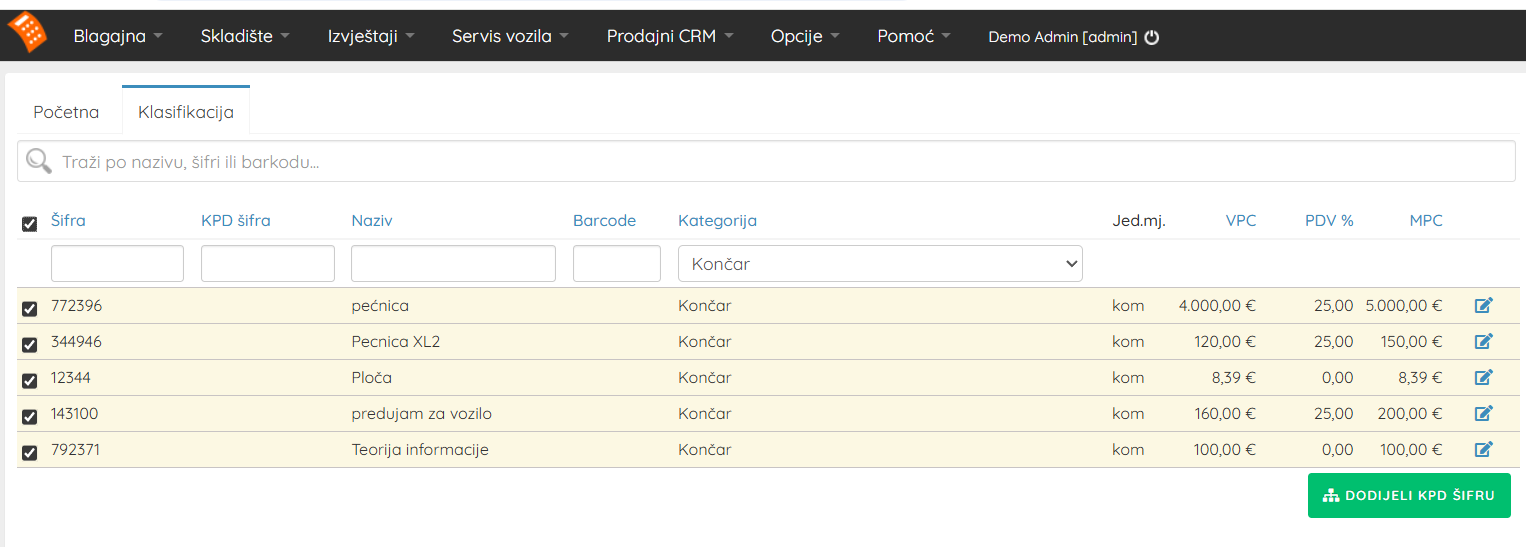
Select the items (use the search and filters if needed), then click Dodijeli KPD šifru (Assign KPD code).
In the picker choose the category, group and code. Optionally keep Skip items that already have a KPD code enabled.
Not sure which code is yours?
KPD codes are defined and interpreted by the Croatian Bureau of Statistics. The fastest way to find the right code:
- Check your main activity (NKD) in your trade or court register: use its digits as the starting point of the search.
- Search the official Klasus browser: web.dzs.hr/App/klasus.
- For activity codes use the NKD browser: web.dzs.hr/App/NKD_Browser.
- Consult your accountant, and in case of doubt you can also send an inquiry to DZS.
Notes
Guide: How to get started
This article is step 7 of 10 of the getting started guide. Previous step: Groups, Items and Services. Next step: Importing Items, Search and Barcode Scanners. All steps: How to Get Started?.