Introduction
Kigo can automatically manage your cash inflow to the Cash Register, and everything is visible in the standard "Cash Register Report". If you need to manually manage cash inflows and outflows from the Cash Register, this can be configured in the options. These instructions explain how to independently manage deposits and withdrawals from the Cash Register.
Automatic Deposit Slip Creation
To activate automatic deposit slip creation, go to "Options" -> "General settings" -> "Other" and set "Cash Register - cash invoice automatically creates a deposit slip" to "Yes". After setting to "Yes", every issued cash invoice will now generate a new deposit slip.

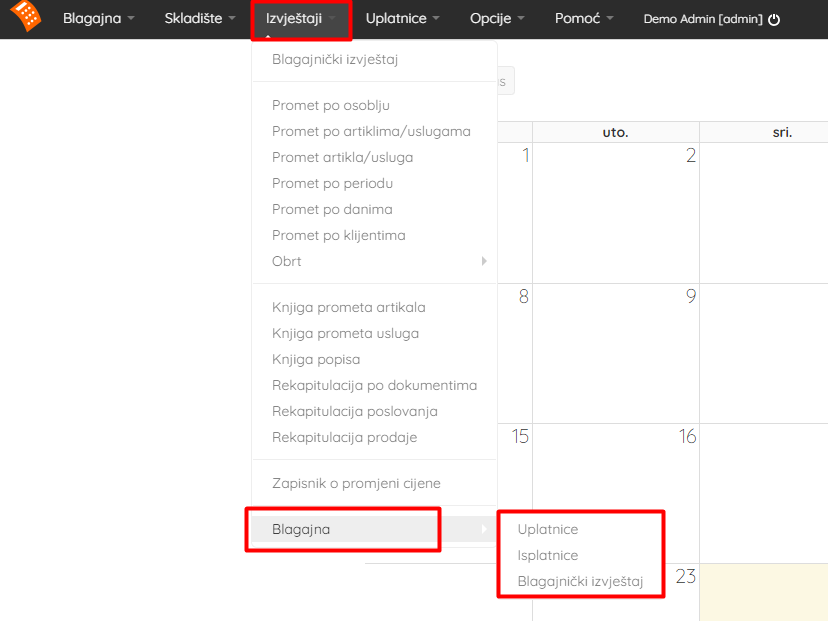
Your new Cash Register report and deposit/withdrawal slip creation are now located under "Reports" -> "Cash Register".
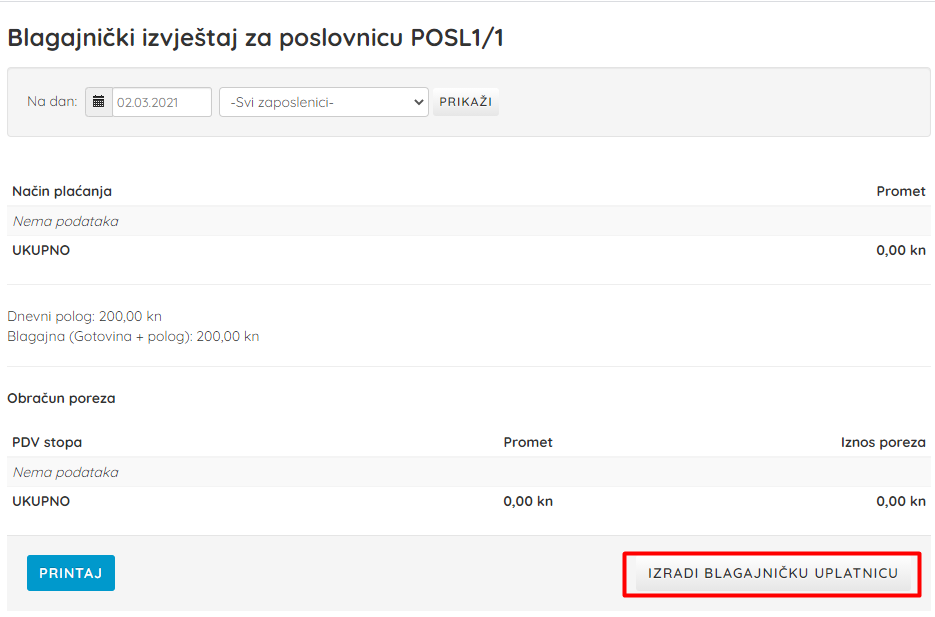
If you do not want to use automatic deposit slip generation with every cash invoice, set the previous option to "No". In that case, you can use the "Create deposit slip" button found on the old Cash Register report. The button will redirect you to create a new deposit slip with the total amount of cash invoices for that day.
There is an option for automatic daily deposit creation as deposit slips. You can change this setting in the options under "Settings".

Creating a New Deposit / Withdrawal Slip
To create a new deposit or withdrawal slip from the Cash Register, open "New Document".
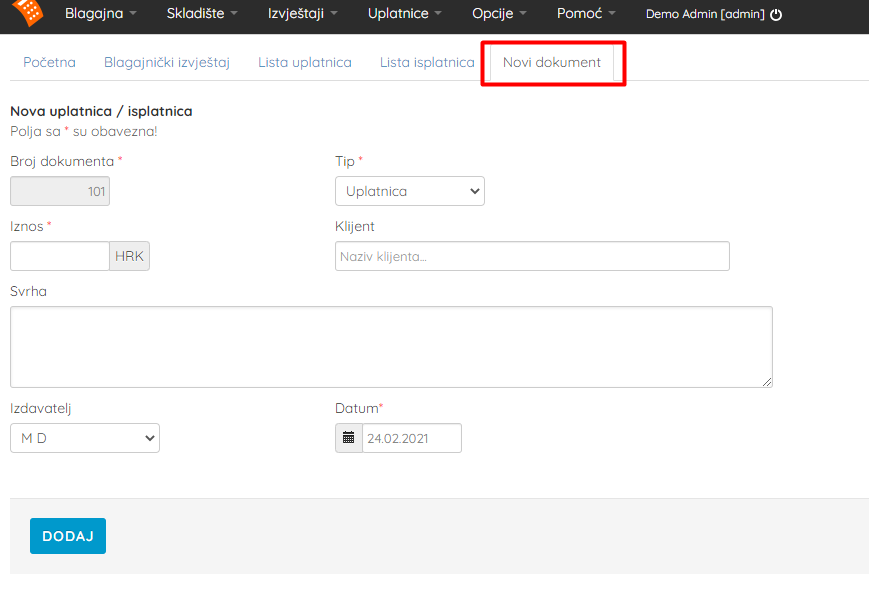
- Document Number is the deposit / withdrawal slip number which is automatically generated.
- Required fields are Type, Amount, Date and Issuer.
- Under Type you choose whether it is a deposit or withdrawal slip.
- Amount is the total document amount.
- Issuer is the operator (staff) creating the document.
- Optional fields are Client and Purpose.
- The client field contains a list of all clients, and when you start typing the name, the program suggests clients from the database.
- Purpose is a description field where you enter details if needed.
Clicking "Add" saves the document.
Deposit / Withdrawal Slip List
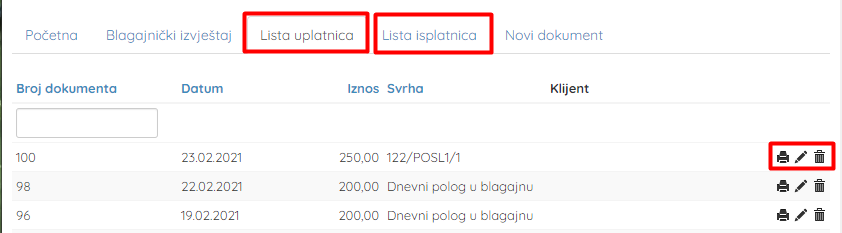
By selecting "Deposit Slip List" or "Withdrawal Slip List" you can view all existing deposit or withdrawal slips. In addition to viewing, you have options for printing, editing and deleting.
Cash Register Report
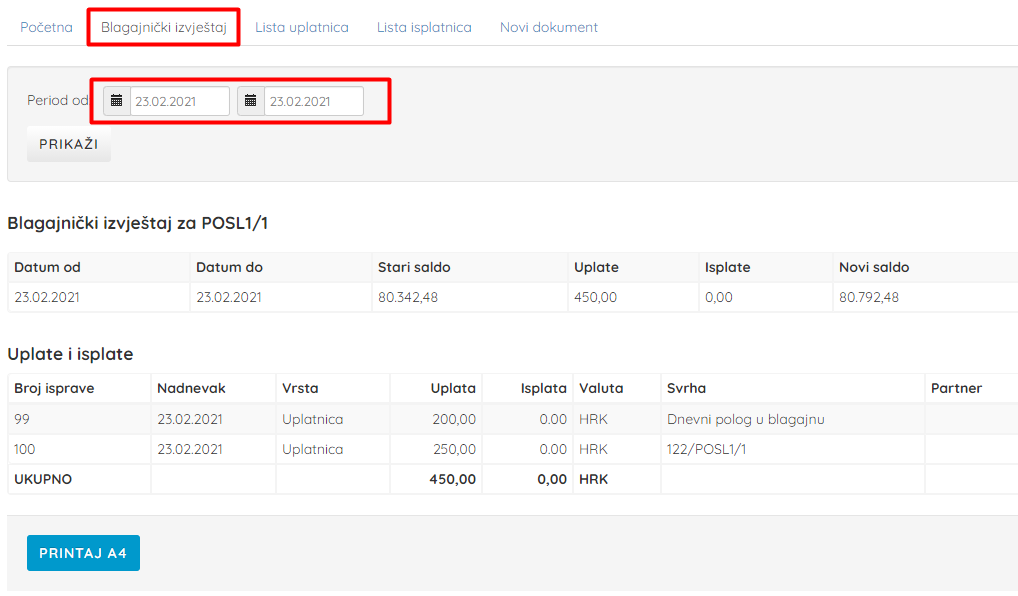
In the new Cash Register report, in addition to a single date, you can select a period and view and print the balance (A4 printer) for a specific period.
Here you will find all the information needed for independently managing deposits and withdrawals from the Cash Register. When you select dates, you can see the Cash Register balance up to that date under "Old Balance" and under "New Balance" you can see the current Cash Register balance.
You can still use the old Cash Register report for the end-of-day settlement.