Print service for POS printers
(58 or 82 mm roll)
Introduction
In retail, service salons and hospitality, Windows computers mostly use small POS printers with a 58 or 82 mm thermal roll. They are usually connected by USB, older ones by a serial or parallel port. For Kigo to print from the browser to such a printer, the print service is installed on the computer.
Installing the print service
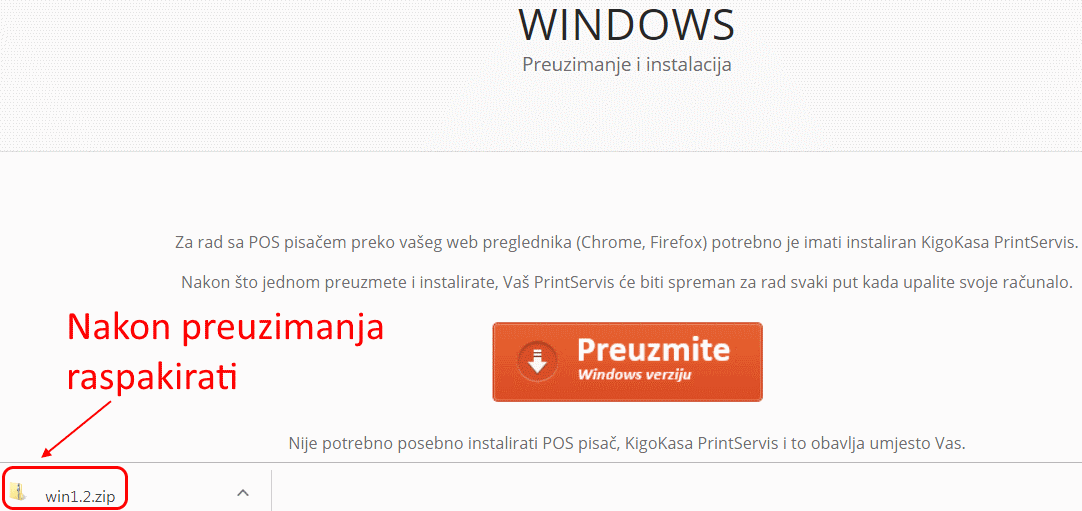
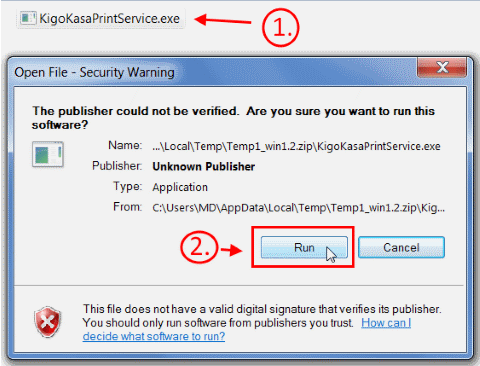
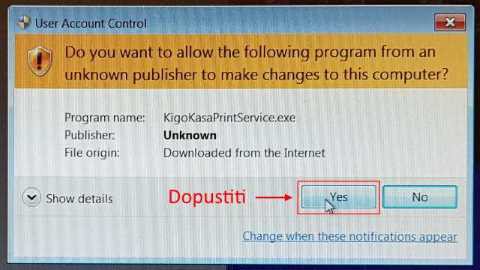
Download the print service for Windows 10 at http://kigocloud.com/download/, section DESKTOP/LAPTOP + POS PISAČ, button Preuzmite za Windows. During installation allow the program to run if Windows warns.
The print service for older Windows 7 and 8 is at http://kigocloud.com/instalacija/win_old.zip. On older Windows sometimes the new and sometimes the old print service works; try both.
Some antivirus programs block the print service; in that case add an exception in the antivirus.
Checking the installation and sharing
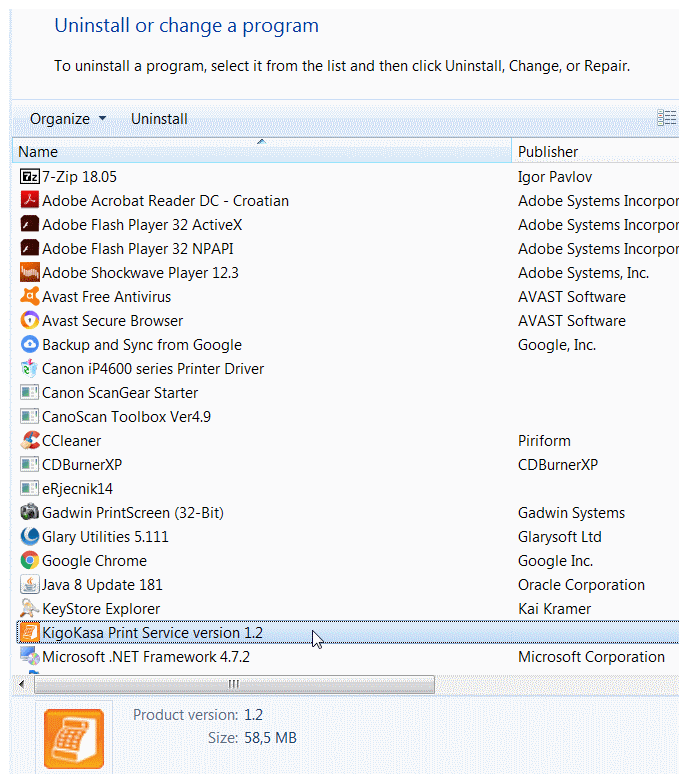
In Control Panel, Programs, check that the program Kigo Print Service is installed.
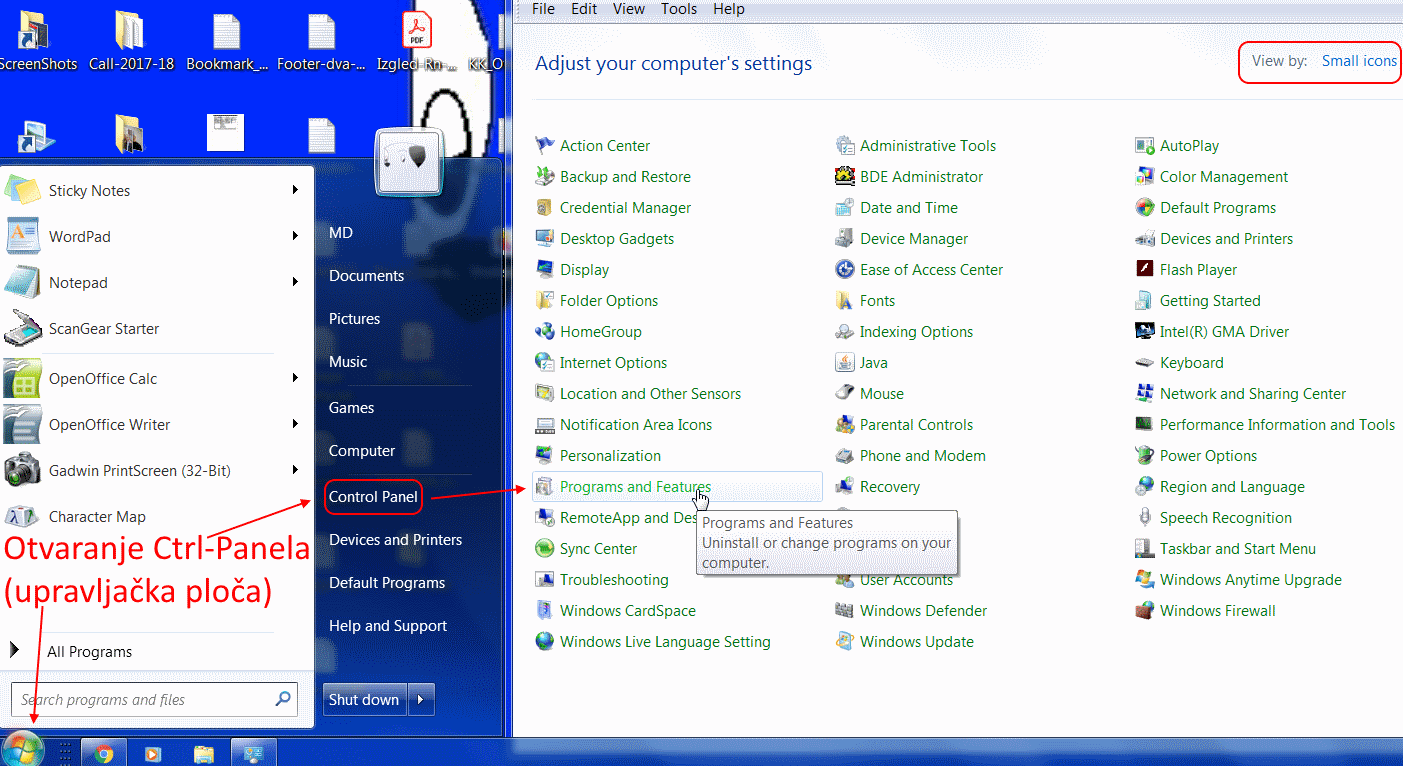
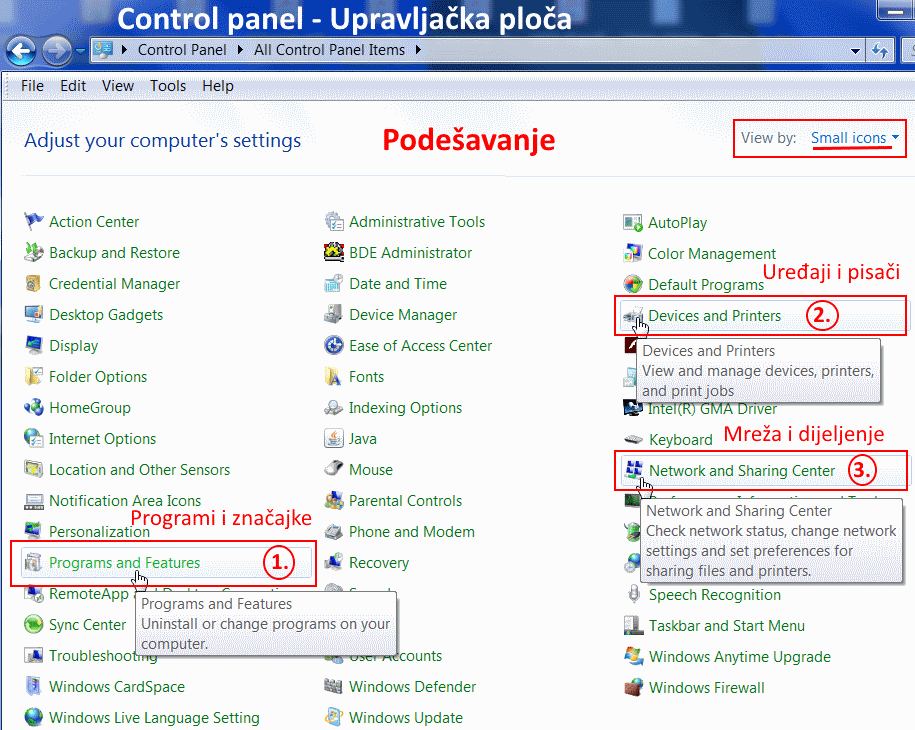
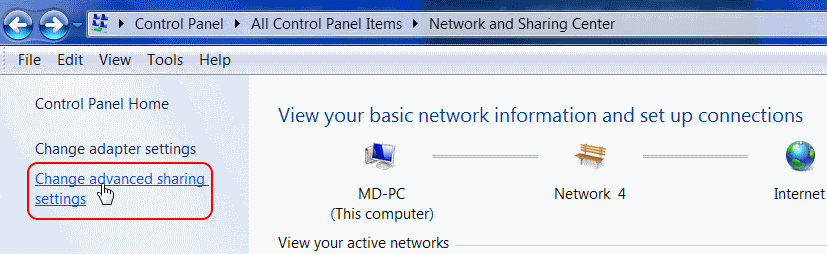
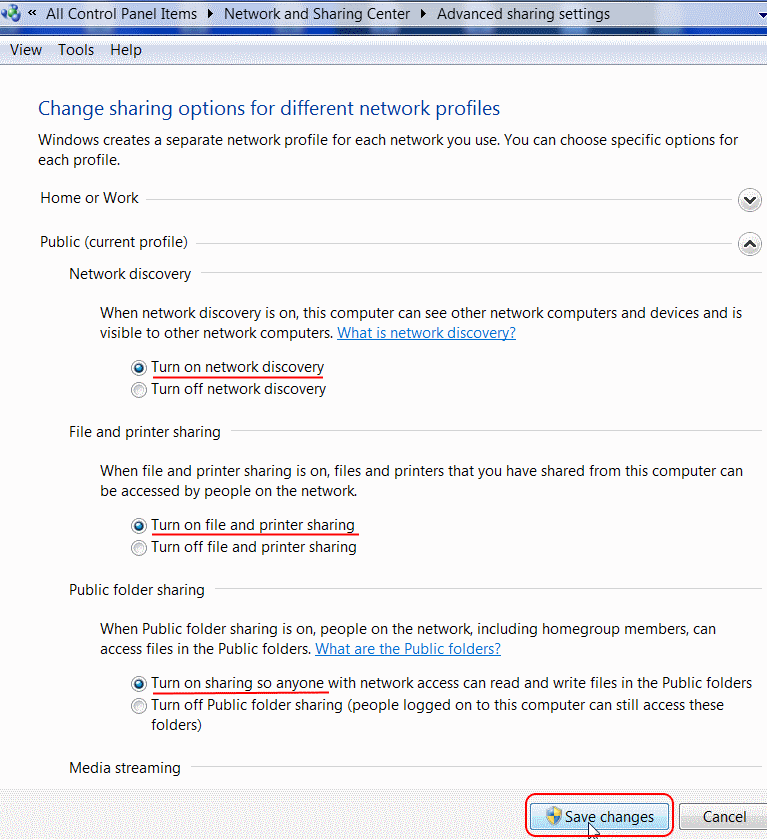
Then in Control Panel open Network and Sharing Center, Change advanced sharing settings and turn sharing on.
Printer settings in Windows
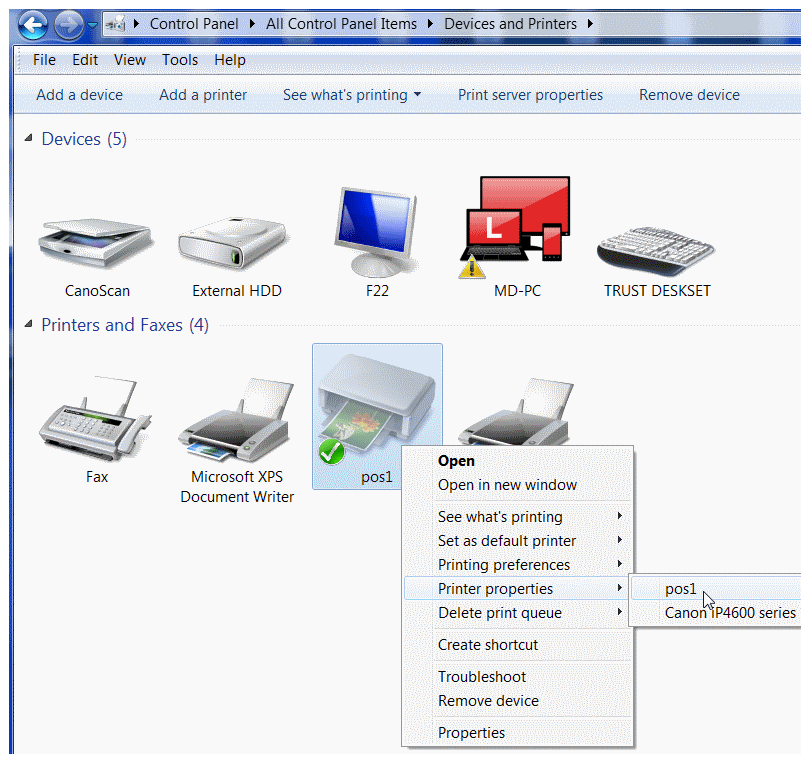
In Devices and printers right-click the printer and open Printer properties.
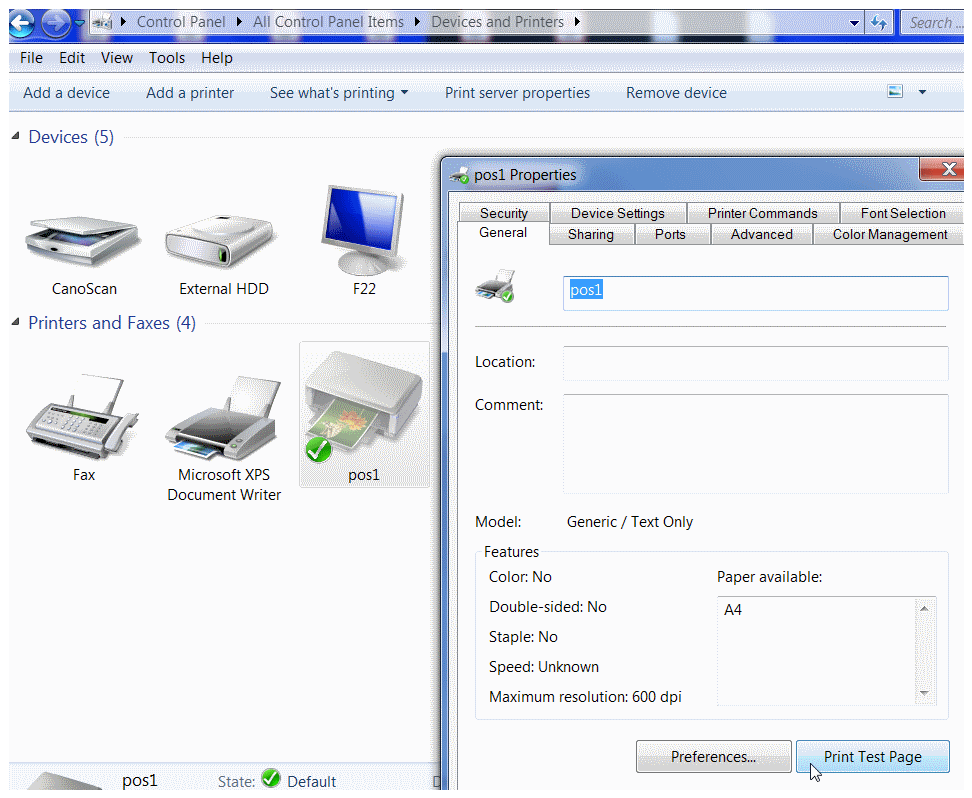
General tab: check the printer name (pos1 in the example) and print a Windows test page with Print Test Page. That is not yet printing from Kigo.
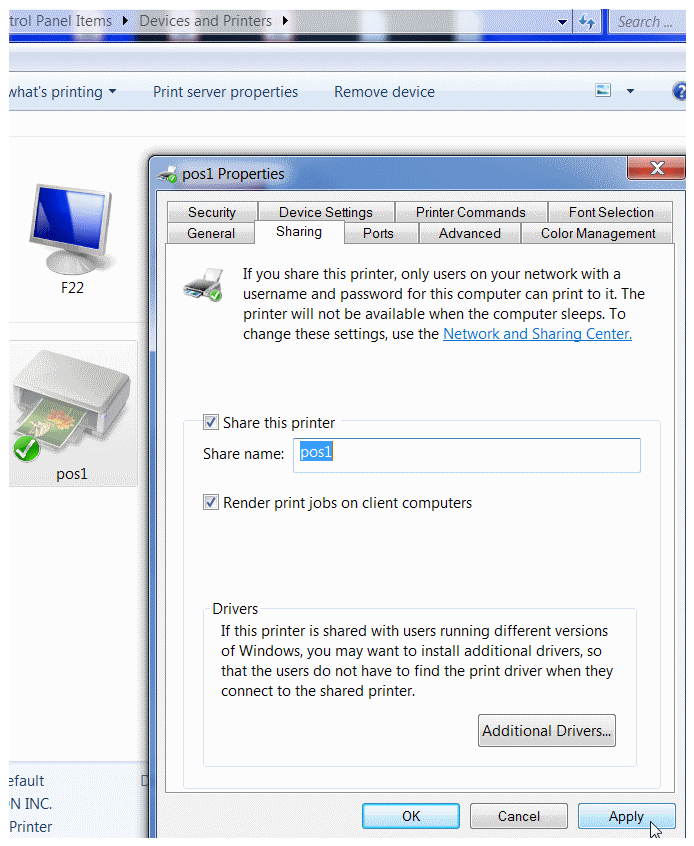
Sharing tab: turn on Share this printer, make sure the share name is the same as the printer name and click Apply.
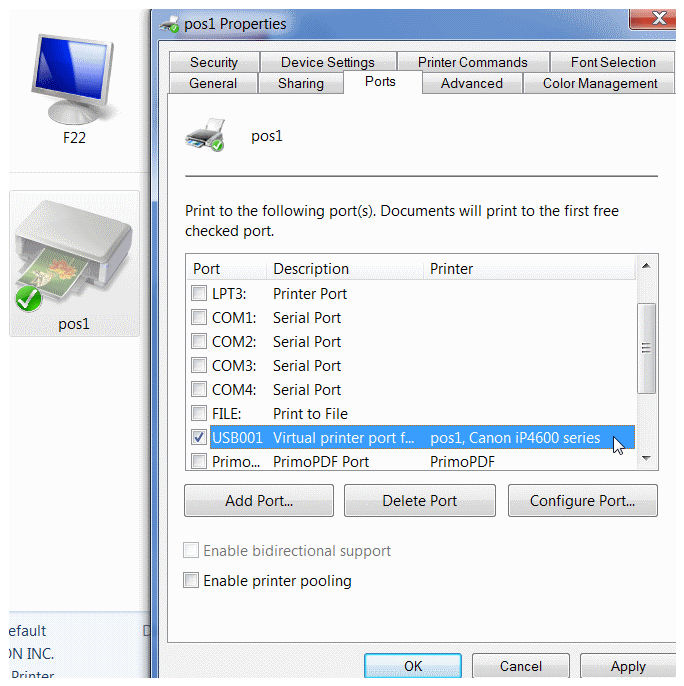
Ports tab: check the printer port (USB, serial or parallel). It is usually already correct.
Connecting to Kigo and a test print
In Kigo open Options → System settings → General settings, tab Printing settings, and set:
- Printer type (pos, a4, mobile): pos
- Printer name: the name under which the printer is shared in Windows (pos1 in the example); it must be written exactly the same
Check printing with the cashier report: Reports → Cash register → Cashier report, print button. If the report does not print, check that the print service is installed and not blocked by the antivirus, that the printer is shared and that the printer name in Kigo is the same as in Windows.
Other printing settings (number of columns, copies, text below the invoice): General settings.
Guide: How to get started
This article is step 5 of 10 of the getting started guide. Previous step: Employee Management. Next step: Groups, Items and Services. All steps: How to Get Started?.